WORKING BROWSING CHEAT!
Not Available | Please Check Back!!!

Pages

Tuesday, November 26, 2013

How To Appear Online To Selected Friends On Facebook Chat

Hello netinfong readers, as usual i have got something nice to show you. Everyone loves staying online all day on Facebook to chat with friends, but sometimes you have no choice than to log out, just to avoid some boring friends that you just can’t delete, and such friends keep bugging you whenever you are online. The good news is that there is a solution to the problem. On Facebook, you can actually choose to appear online to some friends, and offline to the rest. Cool isn’t it? In case all your Facebook friend bug you a lot you can choose to appear offline to all of them.

So, how can I Appear Online To Selected Friends On Facebook Chat?
At the right where you can see all your friends that are online, click on the gear wheel icon at the bottom (Options). If you don’t still understand after signing into Facebook, look at the right bottom corner you will see something like this;
Select Advanced Settings from the list that is displayed. A new window will pop up on your screen.
Choose Turn on chat for only some friends…, and below the option, fill in the name of the friends you want to appear online to. Once you start typing the name, Facebook will automatically bring out the friends with that name, so you can simply type the first two letters of the person’s name then choose the name from the list you will be shown.
To remove a friend from the list, just click on the close button (x), in front of the friend’s name.
When you are done, click Save and that’s all. You will only appear to be online to those selected friends. 
Dont forget to Join us on Facebook http://www.facebook.com/netinfong

Sunday, November 24, 2013

Connect To MTN Easily Using MDMA App

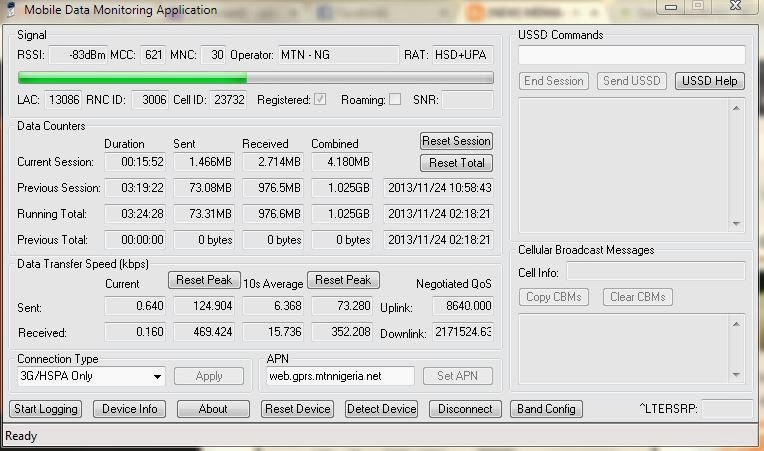
Hello Netinfong readers, today am going to introduce a small but powerful tool called MDMA (Mobile Data Monitoring Application) .As i type this post am so happy because this App was introduced here by one of our Generous/dedicated Fan called "JOHN D" ,By the time you Download the App and use, you will definately Thank him.


Previously i made a post on how to Switch from 2g to 3g on Huawei  Modems, but with the Help of MDMA you can switch from 2g to 3g even easier both on Huawei and Zte modems.

How To Setup MDMA & Use
1. First of all use your Modem dashboard and create a profile as follows
Profile Name*: MDMA
APN: insert the network apn you wish to use
dial number: *99#
NOTE Profile name must be MDMA
2. Now close your Modem Dashboard and proceed to open MDMA

3. When MDMA is open you can change your APN, Connection Type (EDGE/3G) and Even Monitor your Data rate.What a lovely APP

If you have any question, drop your comment below.

Dont Forget to Join our Facebook page http://facebook.com/netinfong

Saturday, November 23, 2013

How to Change Windows 7 Start Menu Button

Hello readers, how is the weekend?? i hope all the Huawei users read my last post on How to switch from 2g to 3g without disconnecting Modem so as to enable them browser with the MTN Tcp cheat. Well today i will like to teach those of you who enjoy tweaking your system, How to change windows 7 start menu button.


Change Windows 7 Start Button

How To Change The Start Menu Icon With Windows 7 Start Orb Changer


Download the application. It is a ZIP file so extract it, using winrar or winzip
    Change Start Button Windows 7

Now run the executable file and click the “Change” button.
    NOTE Make sure you save all your opened documents before proceeding further.

Now select your desired image with the icons. The icons will be applied and your explorer will be restarted. You will also receive a success message from the application.

You can restore the old Start Menu icon using the Restore button. Make sure that you restore the old icons before trying other icons. This is to make sure that the original start menu icons are never overwritten.

For more Info Join our Facebook page: http://www.facebook.com/netinfong

Tunnel Guru with MTN TCP Port

Hello netinfong readers, hope you all are in good health?? because thats our utmost concern. How time flies, we have already reached half of the week and almost the end of November.  Well today i would just like to enlighten our readers more about this new Tunnel Guru v2.6 and why we had to release it.


Due to the complains about Continuous Disconnection, and time wastage in connecting TCP protocol with MTN, we had to bring up a new version that solves all of this issues.

TG Version2.6 Features:
==> Disconnection problem have been Fixed
==> Faster connection with MTN TCP settings
==> Daily 150 MB FREE -> Using  2 Demo servers

Download  TunnelGuru v2.6.0.0 :     For win 32 bit  |     For win 64 bit

Am done.  Oh Oh it seems am forgetting something, yes i remember  i promised to give out a new Rport and Lport. Ok here is an Alternative TCP port for MTN,  follow the screenshot below to setup


NOTE: Rport:360 Lport:25 works with all servers except Canada TCP
Huawei users if you find it difficult connecting do this http://www.netinfong.com/2013/11/how-to-switch-2g-to-3g-with-huawei.html


  Click here  to get Unlimited Tunnel Guru voucher and become part of our clients.

Dont forget to join us on Facebook http://www.facebook.com/netinfong
Friday, November 22, 2013

Nigerian Voting

Hello everyone, TGIF and its Joke time.


3 people from 3 different countries were talking on how they vote presidents in their countries. 

Gebby (American ):"in our country we know the president who has won after 5hours of voting "

Yu Pong( chinese ):" for us we are very okay we know the president who has won after an hour of voting ."

Akpos (Nigerian ): for us we are way better than all of you. in our country we already know the president who has won even before voting .

One word for our Country.

Wednesday, November 20, 2013

How To Switch 2G to 3G with Huawei Modems without disconnecting

Hello netinfong readers, this is what you all have been waiting for, steps on how to switch from 2g to 3g with huawei modems without disconnecting the modem. Well in Reference to my post about MTN Free Browsing . Many Huawei users cannot connect with Tunnel Guru when on 3g mode, but can connect while on 2g mode. So today am just going to show you how to you how to get connected with 3g and still browse.


FEATURES OF  MOBILE PARTNER 17.001.20.01.200
==> Time Interval to Alternate between 2g to 3g delayed.
==>Video Calling Mode
==>GPS Function
==>MMS Function
==>Data Volume Limiter...etc

STEPS ON HOW TO CONNECT FROM 2G TO 3G MODE WHILE CONNECTED
1). Goto TOOLS==>OPTIONS==>NETWORK. When you get there Change your Network Type to "GSM ONLY" and click APPLY, wait until you see EDGE at the bottom corner of the Interface, before you  proceed to the next step.


2). After EDGE has appeared, still on that same Network type change it back to "WCDMA Preferred" and Press Enter Key  on your keyboard.  Then Take Note: Immediately without Delay click Connect.
Modem should now connect to Edge and after a while Change to HSPA then WCDMA.

NOTE: This Tutorial is for Users who have been having issues connecting to Tunnel Guru using 3g Mode, but can connect on 2g mode.

For more Info Like our Facebook page and Follow us on Twitter

Saturday, November 9, 2013

Android BBM package from Airtel

Hello netinfong readers, Ever since the roll out of BBM for Android Devices, there have been a lot of questions from Android users if our Nigerian Networks will provided a cheap and suitable data plan for Android devices, just like BIS is to Blackberry Devices. Well there are yet to answer those questions, But Airtel has made a move and Introduced Unlimited BBM Andriod plan.


How to get unlimited BBM Android Plan
==>Load 300naira Airtime on your Android phone.
==>Dial *440*22# your 300naira Airtime will be deducted and plan activated for you, valid for 30days.

Note: This plan only covers your BBM and is not a Browsing plan, maybe as time goes on Network providers will have AIS (Android Internet Subscription)...lol

For Latest News Like our Facebook page & Follow us on Twitter

Wednesday, November 6, 2013

Facebook Keyboard Shortcuts

Hello netinfong readers, Facebook is one of the largest social networks in the world and almost all of us visit Facebook atleast once a week but yet we dont really know some shortcuts on Facebook. So today i decided am going to show you some, so you feel like a computer wizard among your pals.


Keyboard Shortcuts For Navigation In Facebook

The keyboard shortcuts listed below vary from browser to browser. First see the identifier keys for your browser and then the shortcut.

For Windows

Chrome: Alt+x
Firefox: Shift+Alt+x

For Macintosh

Safari and Chrome: Control+Option+x
Firefox: Control+x
NOTE x is the key described below.

1. Go To Facebook Home.

Hold the “1” key on your keyboard in addition to the identifiers discussed above. Like for Chrome on Windows, you need to hold the “Alt + 1” key combination to navigate to the Facebook homepage.

2. Go To Your Profile Page

Press the number “2” to go to your Facebook profile in addition to the identifier.

3. See And Confirm New Friend Requests

Press the number “3” in place of “x” to see the awaiting friend requests.

4. Go to Your Messages

To reach messages quicker, press the “4” in addition to the identifier for your browser and OS.

5. Notifications

To see all your notifications use the “5” number key on the keyboard.

6. Account Settings

You can easily reach the account settings by pressing the “6” number on the keyboard after the identifier. To reach this without the shortcut, you will have to click the gear icon on the right of the home button and then select “Account Settings“.

7. Privacy Settings

Use the number “7” to get to the “Privacy Settings“. Here you can manage who all can see your posts, send you friend requests and many other settings that can be used to protect your privacy on Facebook.

8. Visit The Facebook’s Facebook Page

Do you know Facebook has its on business page on Facebook. If no, then visit it now using your identifier keys and the digit “8“. This Facebook page shares some really great stuff about internet and connecting the world in a better way.

9. Facebook’s Terms and Policies

To know all the Facebook’s terms and policies, you can use the “9” key in addition to the identifiers.

10. Browsing Facebook’s Help Section

Pressing the “0” after the identifier will take you to the Facebook help centre. There you can learn about different Facebook features and get your problem solved by referring the knowledge base.

11. Compose A New Message

This is the best and the most useful Facebook shortcut. From anywhere on Facebook, you can simply compose a new message by holding the identifier for your browser + the letter “m” on the keyboard.

Hope you have learnt something new today, if you want more Like our Facebook page and Follow us on Twitter

Sunday, November 3, 2013

Glo-NG Slashes Blackberry Tariffs

Hello netinfong readers, it seems our very own Glo just realized that they were the only network left to reduce their Blackberry plan.


In a statement, the company said in addition to the drastic tariff drop, there is also a considerable increase in the data allowance for both BlackBerry 10 plans and the generic BlackBerry plans.
“Globacom is the first network to introduce Blackberry service in Nigeria and we have continued to maintain the lead by offering subscribers the best and most pocket friendly BlackBerry rates. Glo always has exciting offers for both existing and potential customers. We are offering these new tariffs to encourage Nigerians to use data more frequently. This will make life more abundant for our subscribers,” the statement added.
According to the company, the new BlackBerry subscription tariffs are for both old and new customers.
The Absolute Month platform, which  was N2,800 with 3GB data, now goes for N1,000 with 3GB data. The Absolute Week plan goes for N500 with 700MB and the COMONTH and COWEEK plans go for N899 and N400  with data allowance of 3GB and 700MB respectively.

Lets hope they bring back their Daily Blackberry plans...

Friday, November 1, 2013

I Like How You Think

Hello netinfong readers, TGIF and also Happy new Month, i wish you all what ever you wish your selves. Its all been a week of fun, browsing here and there, Downloading all over. So its time to ease out a bit with some laugh Medicine.


A teacher walks into the class with her hands behind her back and says class I have a fruit behind and its red, a child put up his hand and said, miss its an apple she said no its a cherry (But I like how your thinking)

The next day she came in the same manner and said class I have a fruit behind my back and its yellow a child says miss its a banana & she says no its a plantain (But I like how your thinking)

The next day she walks into the class and little Johnny shouted miss I feel something in my pocket and its really hard something,its long,sometimes its short and it has a red head, teacher said you are a bad boy, take your bag  lets go down to the headmaster,

little Johnny
shouted  Miss its a pencil (but I like how your thinking..)

Enjoy ur day.....

Share

Twitter Delicious Facebook Digg Stumbleupon Favorites More